Hello Swift, Hello SwiftUI – Your First App
April 19, 2025
·
2159 words · 9 min read
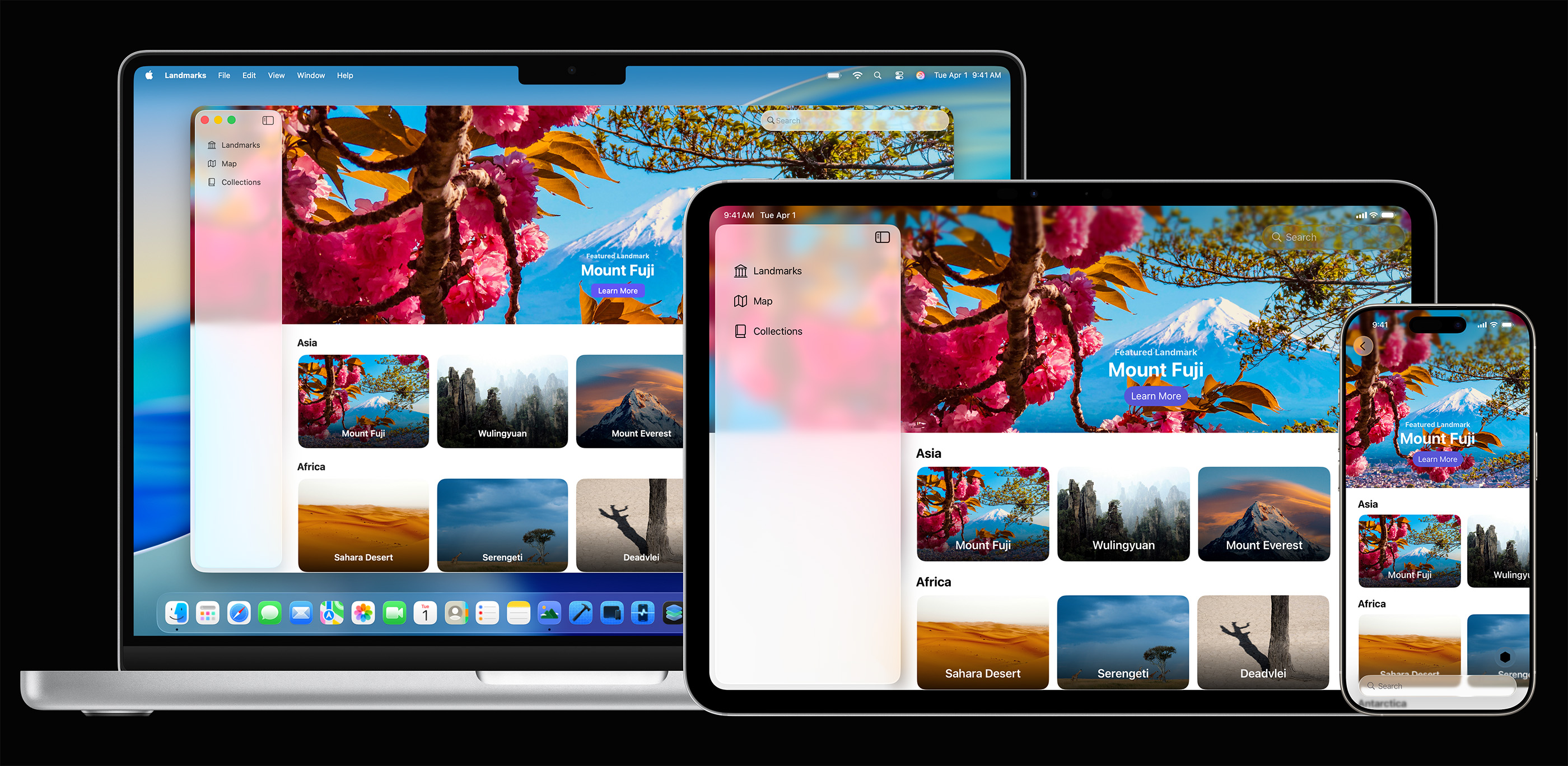
Welcome to the first post of our Swift & SwiftUI series! 🎉 Whether you’re completely new to coding or an experienced programmer curious about Swift, I’m glad you’re here. We’re going to start from the very beginning: What are Swift and SwiftUI, and how do we get something running on screen? The goal is to give you a taste of both the language and the UI framework right away, in a fun and approachable way.
Why Swift and SwiftUI?
So, what exactly are Swift and SwiftUI? In a nutshell:
- Swift is a powerful programming language created by Apple. It’s modern, fast, and designed with safety in mind. Swift is used for building apps on iOS, macOS, watchOS, basically the whole Apple ecosystem. It’s also open-source, so its use isn’t limited to Apple platforms.
- SwiftUI is a relatively new framework (introduced in 2019) for building user interfaces declaratively. Instead of the old way (imperatively building UI step-by-step with UIKit), SwiftUI lets us describe what the UI should look like and how it should behave, and Apple’s frameworks handle the rest. It’s super intuitive once you get the hang of it — and as a bonus, it uses Swift as the language for that description.
Why learn them together? Well, SwiftUI is the shiny tool to build great UIs quickly, but you need Swift language basics to use it effectively. Conversely, just learning Swift in isolation can be dry if you don’t apply it to make something visible. By combining them from the start, you’ll write real mini-apps while absorbing Swift fundamentals. It’s the best of both worlds, and you’ll always see why you’re learning a concept.
Real-world insight: Many experienced iOS developers are moving to SwiftUI because it can dramatically simplify UI code and works across all Apple devices. In my own projects, I’ve found UI code goes from dozens of lines of brittle state-handling to just a few lines of SwiftUI that are easier to read and maintain. It feels like describing the interface rather than coding it – almost like writing down instructions and letting the framework do the heavy lifting.
Setting Up Your Environment (Xcode)
Before we write code, let’s set up the tools. If you’ve developed for Apple platforms before, you probably have Xcode installed. If not, no worries – Xcode is Apple’s official IDE (Integrated Development Environment) for coding Swift and building apps. It’s free on the Mac App Store.
To get started with a SwiftUI project in Xcode:
- Install Xcode: If you haven’t yet, download Xcode from the Mac App Store and launch it. (This may take a while, so be patient with the install.)
- Create a New Project: In Xcode’s welcome screen, choose “Create a new Xcode project.” Select the App template under the iOS section (since we’ll make an iPhone app). Click Next.
- Project Setup: Give your project a name (for example,
HelloSwiftUI). Make sure the Interface is set to SwiftUI (not UIKit) and the Language is Swift. You can leave other fields (like Team or Organization Identifier) as defaults for now. Click Next, choose a location to save the project, and create it. - Explore the Template: Xcode will create some files for you. The important ones are
ContentView.swiftandApp.swift
By default, the template already shows a “Hello, world!” text on the screen using SwiftUI – congrats, you technically already have a SwiftUI app running! Feel free to run the app (hit that ▶️ Play button at the top of Xcode, which builds and launches it in a simulator). You should see a basic app with “Hello, world!” centered. But let’s not just use the template blindly – we’ll understand and modify that code ourselves.
“Hello, world!” in Swift (the language)
Traditionally, the first thing you do in any programming language is make it print “Hello, world!” So let’s do that quickly in pure Swift, just to see the syntax. You can do this in a Playground or even in the ContentView.swift body temporarily (though we’ll use the console for output).
In Swift, printing to the console is as simple as:
print("Hello, world!")
That’s it! If you run this line of code, the message Hello, world! will appear in the debug console (the bottom area of Xcode). The print function is a basic way to output text for debugging or console apps. It’s not how you show text in the app’s UI, but it’s great for quick tests.
Notice we wrapped the text in quotes " – that makes it a String literal in Swift. If you come from another language, you’ll find Swift’s syntax for simple things like this pretty familiar. No semicolons needed at end of line (thank goodness), and print() is straightforward.
Now, printing to console is nice, but our goal is to display text on screen in the app’s user interface. For that, we use SwiftUI.
“Hello, world!” in SwiftUI (the UI framework)
When you made a new project, Xcode generated ContentView.swift with something like this:
import SwiftUI

struct ContentView: View {
    var body: some View {
        Text("Hello, world!")
            .padding()
    }
}
This is SwiftUI’s way of describing a screen (or a portion of a screen). Let’s break it down step by step:
import SwiftUI– This brings in the SwiftUI framework so we can use its types and functions. You’ll need this at the top of any file using SwiftUI views.struct ContentView: View– Here we declare astruct(value type) namedContentViewthat conforms to theViewprotocol. In Swift, structs are used for grouping code and data. SwiftUI’s basic building block is aView, which is something that can be drawn on screen. By writing: View, we promise thatContentViewwill fulfill the requirements of theViewprotocol – essentially, it can be used as a UI component.var body: some View { ... }– TheViewprotocol requires a computed property calledbodythat tells SwiftUI what to display. The type issome View, which means it will return a view (or rather, something that conforms toView). Inside the braces{}, we provide the actual view content.- Inside body:
Text("Hello, world!").padding()– This is the actual UI: aTextlabel that literally displays “Hello, world!” and a modifier.padding()that tells SwiftUI to add some space around the text. Modifiers in SwiftUI are called with dot syntax and they return a new view with the modification applied (don’t worry too much about how that works under the hood just yet).
If you recall, in our pure Swift example we used a print function. In SwiftUI, we instead use a Text view to show text on screen. The string "Hello, world!" is being passed into the Text view. The .padding() is just a nice touch – it adds default padding so the text isn’t stuck to the edges. Visually, it doesn’t matter much in the preview with centered text, but it’s a common thing to include.
That’s it! With these few lines, we have a UI component defined. SwiftUI is declarative – we declared that our body consists of a Text with some padding. We didn’t have to say how to draw it or where exactly to place it. SwiftUI takes that declaration and renders it for us.
If we want to change the text, we change the string, and the UI updates automatically in the preview or when the app re-runs. If you build and run the app, you’ll see the text on screen. If you’re using the canvas preview in Xcode (the right side that shows the design), any code changes should show up there almost immediately – one of SwiftUI’s coolest features is the interactive preview.
Now, if you open the other file
(it might be named after your project, like HelloSwiftUIApp.swift), you’ll see something like:
@main
struct HelloSwiftUIApp: App {
    var body: some Scene {
        WindowGroup {
            ContentView()
        }
    }
}
We won’t dwell on this too long, but just so you know what it is:
- This is the app’s entry point. The
@mainattribute means execution starts here. - The struct conforms to the
Appprotocol. - Inside,
bodydefines aScene(basically, what to show in the app window). WindowGroupis a scene type for apps with windows, and inside it we put ourContentView().
In short, this is how SwiftUI launches our ContentView as the first screen of the app. Xcode set this up automatically, so you usually don’t need to edit this file for simple projects.
A Quick Iteration – Customizing the Text
Before concluding this intro, let’s do one small change to make sure everything is wired up and to show how easy it is to update the UI. Go to ContentView.swift and change the text string:
struct ContentView: View {
    var body: some View {
        Text("Hello, SwiftUI!")
            .padding() // Or try .padding(20)
    }
}
Maybe also change .padding() to .padding(20) to add a bigger padding of 20 points, just to see a difference. When you update the code, the preview should refresh and show “Hello, SwiftUI!” with more space around it. If you run the app again, you’ll see the updated text in the simulator. You just edited your first SwiftUI view! 🎉 This development cycle of editing code and quickly seeing UI changes is one of the joys of SwiftUI compared to the older tools.
What Did We Learn? We covered a lot in a short time, so let’s summarize the key points from our first outing:
- Swift is the programming language we’re using. We saw a simple print in Swift to output text to the console.
- SwiftUI is the UI framework. We created a ContentView struct that tells SwiftUI to display a text label.
- SwiftUI uses a declarative syntax: we describe the desired UI (a text with padding) rather than imperatively drawing it.
- The code is concise: no more UIViewController classes or manual layout constraints just to show a label. For comparison, in the old days of UIKit, showing “Hello, world” required significantly more code and an explicit label component. SwiftUI did all that setup for us behind the scenes.
- Xcode’s SwiftUI template gave us a head start with an App struct and a ContentView.
- We learned that ContentView.body is where the UI is defined.
- We lightly touched on Swift concepts: struct and protocols (View), though we haven’t fully explained those yet.
- Don’t worry – in upcoming posts, we’ll dive into what structs are, how Swift protocols work, and more. At this point, you have a basic app running and have seen both Swift language and SwiftUI in action. Even if you didn’t understand every keyword or line (what’s a struct? why some View?), you’ve got a high-level picture. Starting next post, we’ll begin filling in those blanks by exploring Swift fundamentals.
Coming up next: We’ll step back from the UI for a moment to focus on Swift basics – things like variables, constants, and data types. Mastering those will make the SwiftUI parts much clearer and set you up to handle dynamic data in your apps. We’ll keep it hands-on and show how those basics tie back into SwiftUI. Stay tuned!