Variables, Constants & Data Types in Swift (with a SwiftUI Twist)
April 19, 2025
·
2581 words · 11 min read
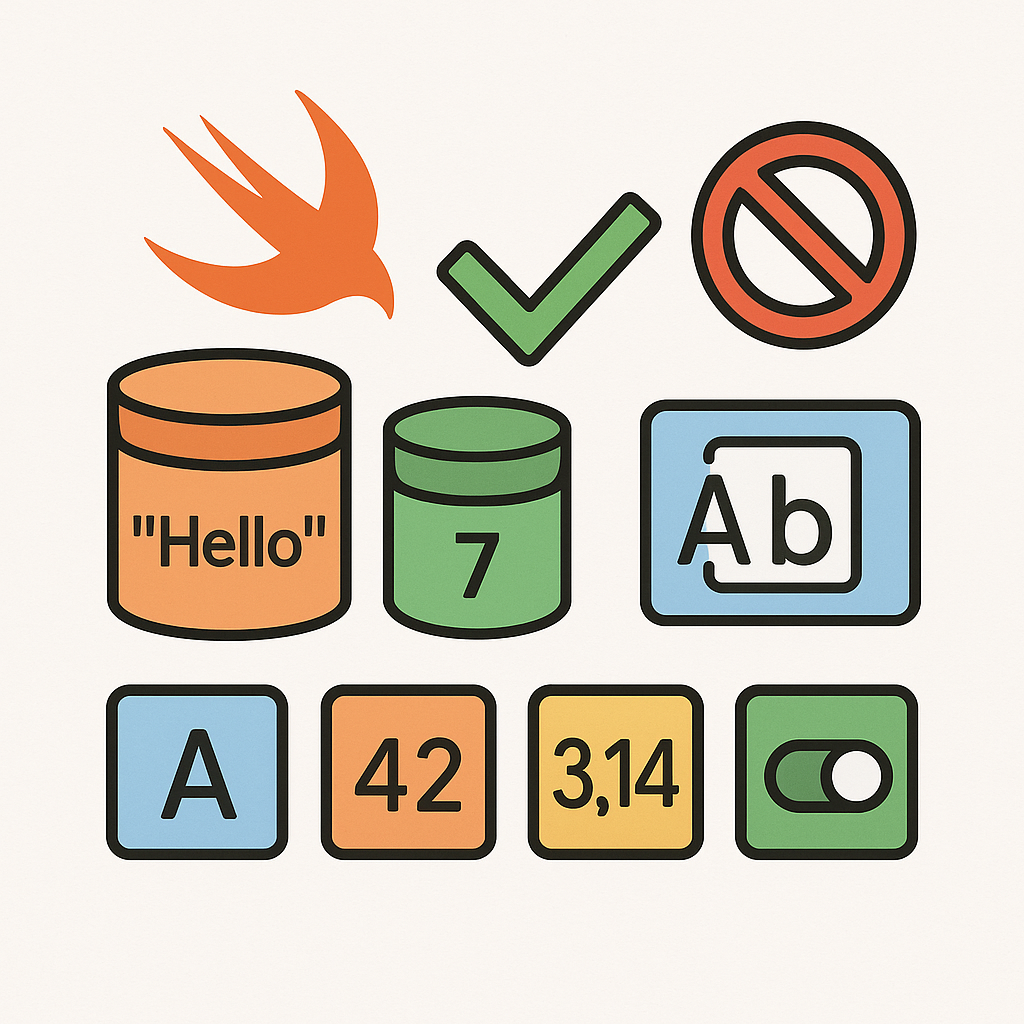
Welcome back! After creating a simple “Hello, world” app in the last post, you might be wondering: Okay, but how do I actually work with data in Swift? Great question! In this post, we’re going to cover the fundamentals of the Swift language – things like variables, constants, and data types. These are the building blocks for any program you write. And of course, we’ll use what we learn to make our SwiftUI interface a bit more dynamic than a hardcoded string.
If you’re already an experienced programmer, some of this will be familiar territory (though every language has its own quirks). If you’re a beginner, this is crucial stuff – once you grasp these concepts, you’ll have a much easier time with everything else.
Let’s dive in.
Variables: Storing Values that Change
Think of a variable as a container that holds a value. You give the container a name, and you can put something inside (and even change it later). In Swift, you declare a variable with the keyword var. For example:
var greeting = "Hello"
print(greeting)  // Outputs "Hello"
Here we created a variable named greeting and gave it an initial value of "Hello". Swift is smart about types – it sees we assigned a string literal, so it knows greeting is a String. We then printed it, which, as expected, prints Hello. Now, because greeting is a variable (as opposed to a constant, which we’ll cover next), we can change it:
greeting = "Hi"
print(greeting)  // Outputs "Hi"
We didn’t use var the second time – once a variable is declared, you just use its name to access or assign it. After assigning "Hi" to greeting, printing it shows the updated value. So variables in Swift are mutable (changeable) storage.
A few things to note:
- You must declare a variable before using it. If you try to use a name that hasn’t been seen by the compiler, you’ll get an error.
- Swift is strongly typed, but it often can infer the type. In our example, we didn’t explicitly say
greetingis aString– Swift figured it out. We could have writtenvar greeting: String = "Hello"for clarity, but it wasn’t necessary in this simple case. - Once a variable has a type (in this case String), you can only assign it values of that same type. If we tried
greeting = 42later, Swift would complain because42is anInt(integer), not aString.
Constants: Immutable Values with Let
Many times, you’ll have values in your code that never change – things like configuration settings, fixed messages, etc. In Swift, you should mark those as constants using the keyword let. Once a constant is assigned, you can’t change it, which is great because it prevents accidental modifications and clarifies intent.
Example:
let year = 2025
print(year) // Outputs 2025
This declares a constant year with value 2025. Because we used let, if we later try to do year = 2026, the code won’t compile. Swift will throw an error like “cannot assign to value: ‘year’ is a ‘let’ constant.” This might feel restrictive at first, but it’s a feature. By default, Swift developers prefer to use let (constants) and only use var if they know the value needs to change. This leads to safer code. In real-world projects, I often start with everything as a constant, and only loosen it to a variable if the design requires change.
Opinion time: This constant-by-default style is something I’ve grown to appreciate. In other dynamic languages (Python, JavaScript, etc.), it’s easy to accidentally change something and not realize it. Swift makes you think about what should change and what shouldn’t, and that extra clarity pays off when you read the code later or debug issues.
Basic Data Types in Swift
Swift has several fundamental data types that you’ll use every day. Here are the most common ones:
String– for text. e.g."Hello, SwiftUI!"Int– for integer numbers (no decimals). e.g.42or-7.Double– for floating-point numbers (with decimals). e.g.3.14159. (There’s alsoFloat, butDoubleis the default for decimals in Swift because it’s more precise.)Bool– for boolean values, i.e.trueorfalse.
Let’s see them in action:
var city: String = "New York"
var population: Int = 8_336_817
var pi: Double = 3.14
var isOpen: Bool = false

// Swift can also infer these types without the explicit annotations:
var country = "USA"         // inferred as String
var yearFounded = 1624      // inferred as Int
We declared a few variables with explicit types. Notice you can use underscores in numeric literals to make them more readable (8_336_817 is just 8336817, but easier on the eyes). Also, for country and yearFounded we let Swift infer the types.
One thing to highlight: Swift is statically typed, which means once a variable’s type is set, it cannot change. If population is an Int now, you cannot assign a string to it later. Many beginner mistakes, like mixing up types, are caught by Swift’s compiler at build time, saving you from weird bugs at runtime.
Strings and Text
Strings are a bit special because you’ll use them a lot for UI and messages. You can combine (concatenate) strings with the + operator:
let firstName = "Jane"
let lastName = "Doe"
let fullName = firstName + " " + lastName
print(fullName)  // Outputs "Jane Doe"
Here we created a full name by adding firstName, a space, and lastName. Because all parts are strings, this works fine. If firstName or lastName were variables, you could of course change them and fullName would then be recomputed if you rerun that line (although in this case we used let constants for names).
A more powerful way to build strings in Swift is string interpolation. This lets you insert values (like numbers or variables) into a string easily:
let age = 30
let intro = "Hello, my name is \(fullName) and I am \(age) years old."
print(intro)
// Outputs: Hello, my name is Jane Doe and I am 30 years old.
Inside the string literal, we wrote \(fullName) and \(age). Those get replaced with the values of fullName and age when the string is created. This is super handy – you don’t need to convert types to string or do lots of + operations. Swift will convert the age Int into a string as part of this interpolation.
This works with any type. If you had a Double or Bool, \(pi), \(isOpen) would insert “3.14” or “false” respectively.
Now, something to be aware of: because Swift is strict about types, you cannot do something like "Year: " + 2025 directly, because that tries to add a String and an Int. In other languages that might implicitly convert the number to text, but Swift wants you to be explicit. You could fix that by either doing "Year: " + String(2025) or by using interpolation: "Year: \(2025)". The latter is cleaner in my opinion.
Numbers and Arithmetic
For Int and Double, Swift supports the usual arithmetic operators: +, -, * (multiply), / (divide). It also has a % modulo operator for remainders. An example:
var a = 10
var b = 3
print(a + b)  // 13
print(a - b)  // 7
print(a * b)  // 30
print(a / b)  // 3 (integer division, since a and b are Int)
print(a % b)  // 1 (10 divided by 3 is 3 remainder 1)
If we made a or b a Double, then a / b would yield a Double result (like 3.3333). Swift won’t automatically convert between Int and Double; you need to cast/convert explicitly if needed (e.g., Double(a) / Double(b) to get a Double result). Again, this strictness prevents mistakes, like accidentally losing precision.
Booleans and Logic
A Bool (Boolean) is either true or false. They come into play with conditional logic (which we’ll cover in the next post on control flow), but you can already use them in simple ways:
let loggedIn = true
let hasAccess = false
Booleans also have operators: ! for NOT (negation), && for AND, || for OR. For example, !loggedIn would be false (because loggedIn is true, and ! flips it), while loggedIn && hasAccess would be false (because one operand is false, so the whole AND is false). We’ll use these when we do if statements soon.
Using What We Learned in SwiftUI
Alright, we’ve covered a bunch of Swift basics. Now, how do these translate to SwiftUI? The good news: everything you learned is fully applicable when building UIs. SwiftUI is not a different language – it’s a framework. So when you define a SwiftUI view, you’re writing Swift code. You can use variables, constants, and all the types we discussed to drive your UI. Let’s make our UI a bit dynamic using a variable. Suppose we want a greeting that addresses the user by name. We could write:
struct GreetingView: View {
    let name = "Charlie"

    var body: some View {
        Text("Hello, \(name)!")
    }
}
Here, name is a constant (using let) within our view. We use string interpolation inside Text to insert the name. If you set up this view (for example by replacing ContentView’s body with GreetingView, or previewing GreetingView), you’d see “Hello, Charlie!” on screen. Simple, right?
Now, name is a constant, so it won’t change while the app runs. If we want to change what’s displayed, we’d need to change the code. That’s not very interactive. What if we want a variable we can update, say, via a text field or button? We haven’t covered those yet (that’s coming when we discuss state), but imagine we had a variable that could change. In SwiftUI, to make a variable’s changes reflect in the UI, we have to use a special wrapper called @State. We’ll dedicate more time to that in a later post. For now, know that if we had @State var name = "Charlie", SwiftUI would automatically update the Text whenever name changes. But again, we’ll get there. 🙂
Let’s do a slightly more interesting example combining a little logic with our variable. Say we have a numeric value and we want to show it with some context:
struct ScoreView: View {
    let score = 7

    var body: some View {
        Text("Player score: \(score)")
            .foregroundColor(score > 0 ? .green : .red)
    }
}
In this view, we display a score. We also colored the text conditionally: if score is greater than 0, we use green; otherwise red. This uses the ternary conditional operator condition ? valueIfTrue : valueIfFalse. It’s a compact way to choose between two values. Here, score > 0 is a Boolean expression. If true, .green (a Color) is used; if false, .red is used. This is a sneak peek at using logic (Booleans) in SwiftUI. We’ll cover conditions more formally soon, but I wanted to show how even at this stage, your Swift knowledge can directly influence the UI.
Recap and Takeaways
We covered a lot of fundamental ground here:
- Variables (
var) allow storing values that can change. We saw examples with strings and numbers. - Constants (
let) store values that once set, cannot change. Use them whenever possible for safer code. - Types in Swift must match. Swift infers types for you, but it won’t let you mix types incorrectly. We went through common types:
String,Int,Double,Bool. - String Interpolation is your friend for creating strings with dynamic data (“Hello, (name)”).
- Basic operators for math and logic work as expected, but keep an eye on type conversions (
Ints vsDoubles). - Swift’s strict typing and option to use constants might feel verbose compared to some scripting languages, but it prevents many bugs. As you get used to it, you start appreciating that the compiler is looking out for you.
- We applied these basics in a SwiftUI context by using variables in our view. We saw that Swift code (like a ternary operator or an expression) can be directly used inside SwiftUI view definitions to affect the UI.
With this knowledge, you can already tweak your SwiftUI views to display different values, do simple calculations, or color things based on conditions. Play around with it: try changing values, use different data types (maybe add two Doubles and show the result in a Text), or concatenate strings.
Coming up next: We’ll introduce control flow – the art of making your code make decisions and repeat tasks. This means if/else for conditional execution and loops like for to iterate over items. Why is that exciting for SwiftUI? Because it lets us conditionally show/hide views and generate views from collections (imagine showing a list of messages by looping through an array). We’ll also soon tackle the big topic of Optionals (Swift’s way of handling the absence of a value) which we’ve hinted at. Stay tuned for more Swift and SwiftUI goodness in the next post!